Oracle VM VirtualBox is a cross-platform virtualization application. it installs on your existing Intel or AMD-based computers, whether they are running Windows, Mac OS X, Linux, or Oracle Solaris operating systems (OSes).
It extends the capabilities of your existing computer hardware so that it can run multiple OS inside multiple virtual machines, at the same time.
To cite an example, you can run Windows and Linux on your Mac, run Windows Server 2016 on your Linux server, run Linux on your Windows PC, and so on
So today I would like to share the Virtual Box Installation Guide in Windows 10 OS. (this guide is prepared and installed as on 12th Dec 2020)
Official website: https://www.virtualbox.org/
Download: https://www.virtualbox.org/wiki/Downloads
Once you download Virtual Box exe then you can follow the installation steps that will help you to install in your Window machine.
Virtual Box Installation Steps as following:
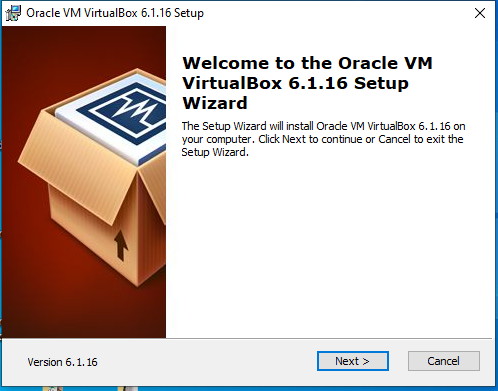
Click on >> Next button

After selecting the location >> press Next
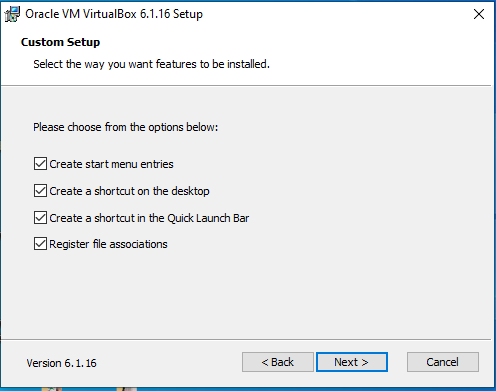
Then click on >> Next button
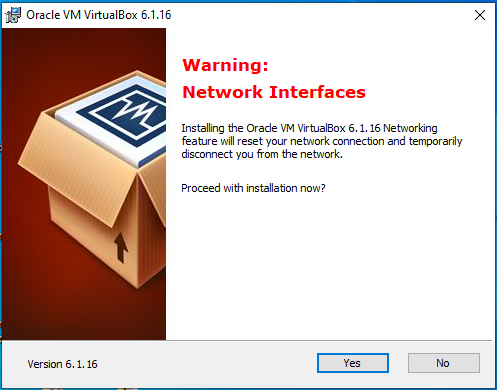
Next step >> click on >> Yes
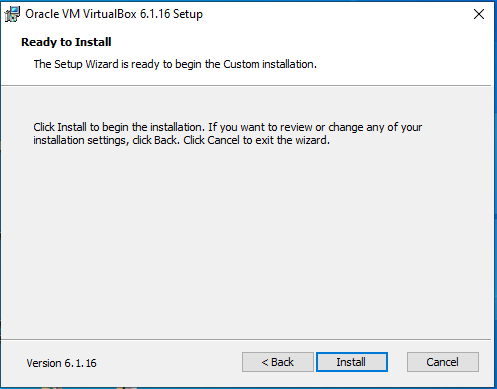
Now you are ready to install, Just one click away, click on >> Install word

Your installation process is started, wait for sometime to install VirtualBox
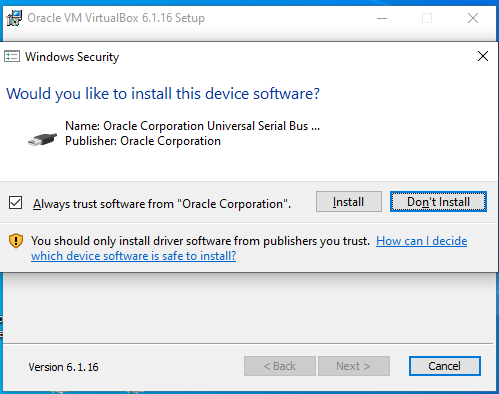
Install device software >> Click on Install button
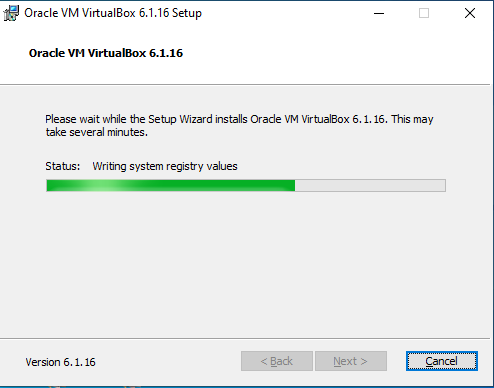
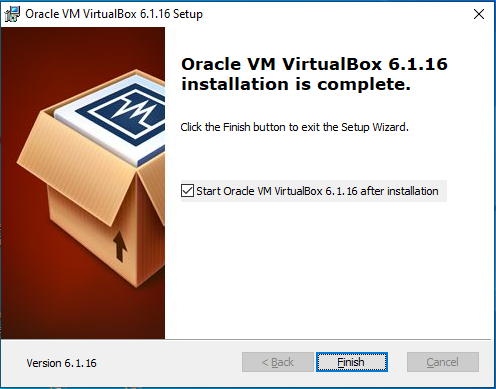
Now click on Finish button >> you are almost finished the installation process
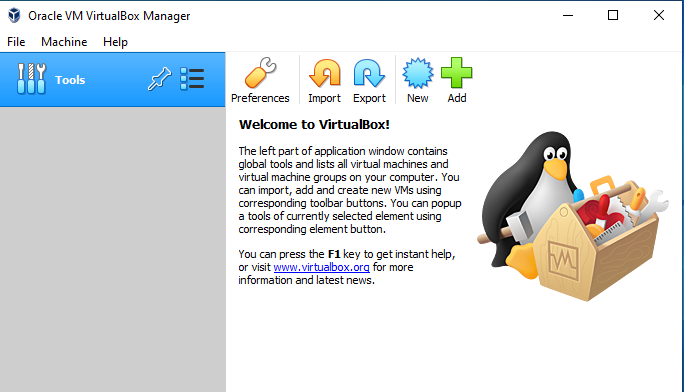
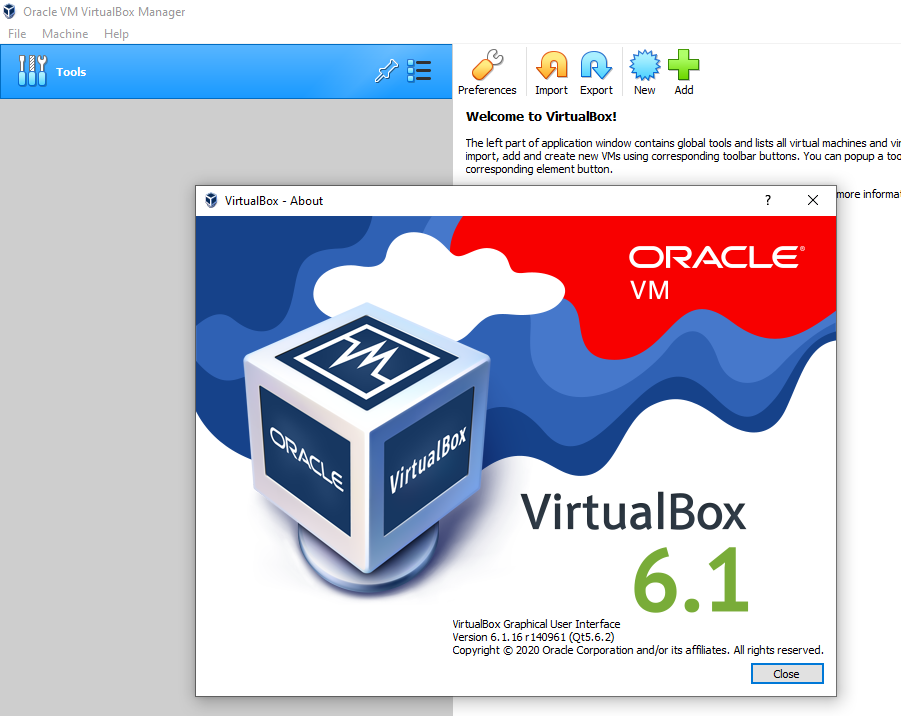
Default Screen Oracle VirtualBox Manager will be shows as above, If you find this then you have installed VirtualBox on your Windows 10 PC.
Now you are able to create multiple VMs on your machine based on your hardware capacity of your existing Window PC