

Hello All,
Getting Started with Ollama: A Step-by-Step Guide for Running LLMs Locally on Windows (with DeepSeek & LLaMA Models)
In this post, we’ll walk through the process of installing Ollama on a Windows machine and demonstrate how to run open-source Large Language Models (LLMs) locally using lightweight versions of the DeepSeek and LLaMA models.
This guide is made for developers and AI lovers who want to learn more about LLMs in a safe, private, and offline environment, without limitation of cloud-based platforms. By running models locally, you keep full control over your data, eliminate the security risk, and get to use powerful AI tools in everyday life.
What’s Inside:
A complete step-by-step installation of Ollama on Windows

Commands to:
    Download and run models
    Switch between models
    Stop running models
    List all installed models
    ...and more
Whether you’re just beginning your AI journey or looking to test and fine-tune LLMs for your own use cases, this guide will help you set up a secure, local development environment with ease.
Let’s dive in and unlock the power of LLMs—right on your own machine.
Step: 1 : Download Ollama
Go to official website of Ollama: https://ollama.com/
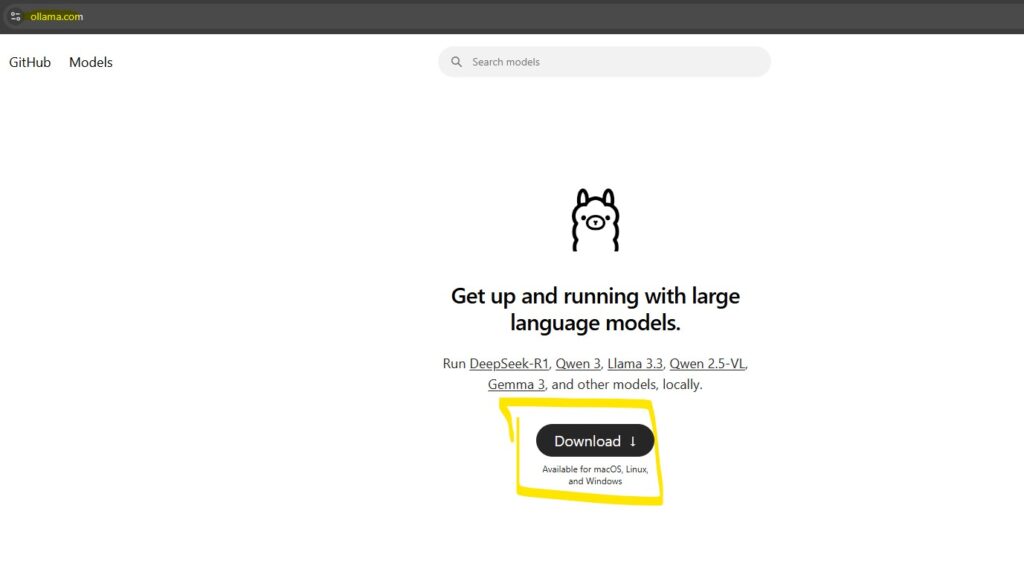
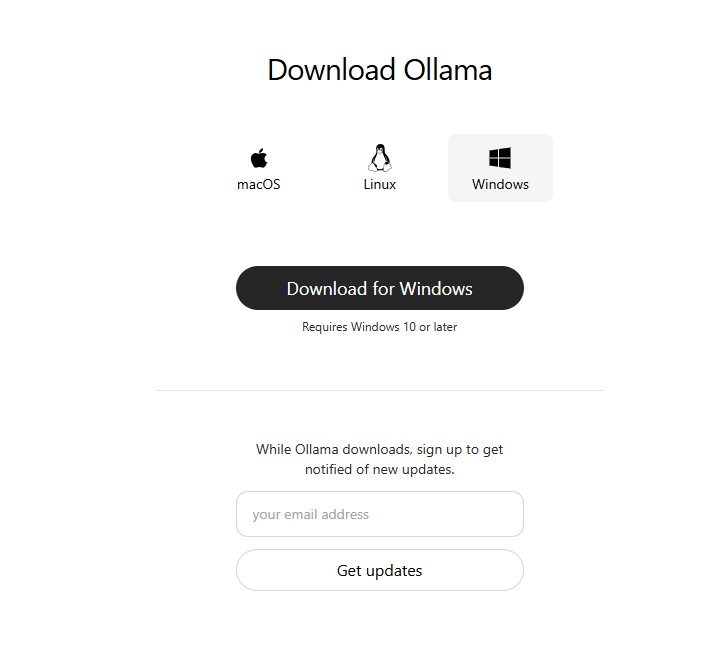
Step 2: After download from the official website, Install by using following instruction
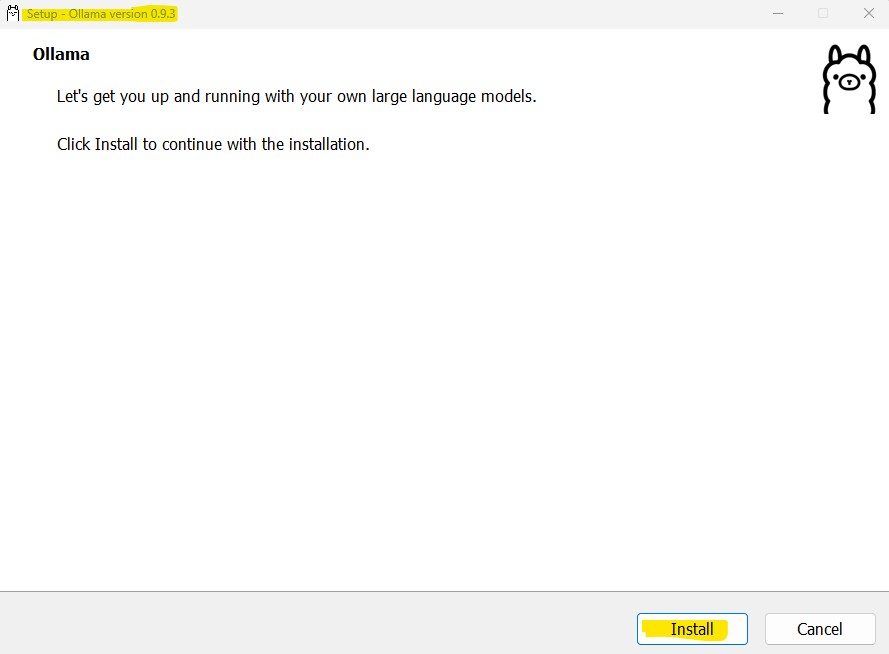
Click on Install button
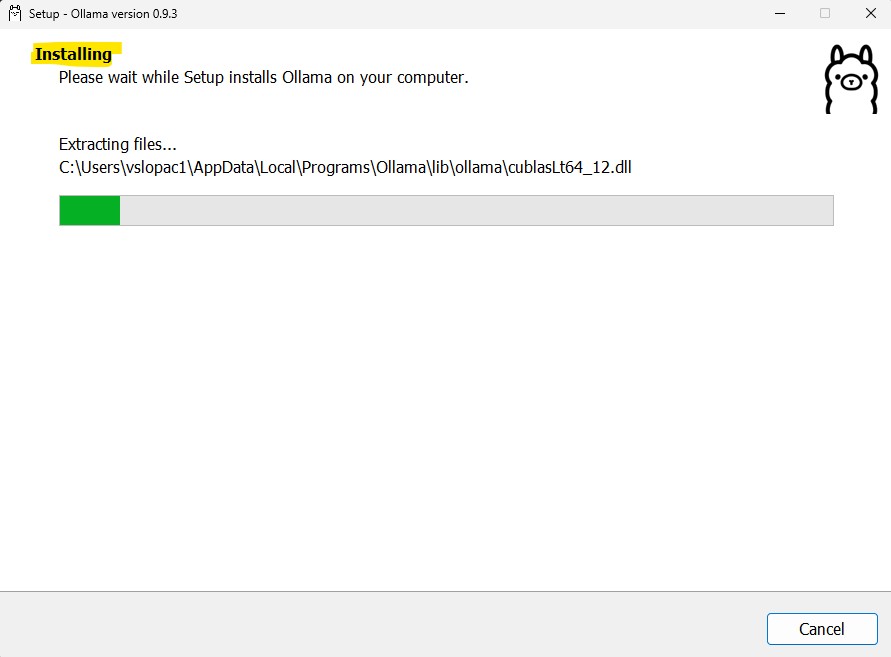
It will take some time to install, and you will see the Ollama installed in your computer, just see the ollama icon on the taskbar

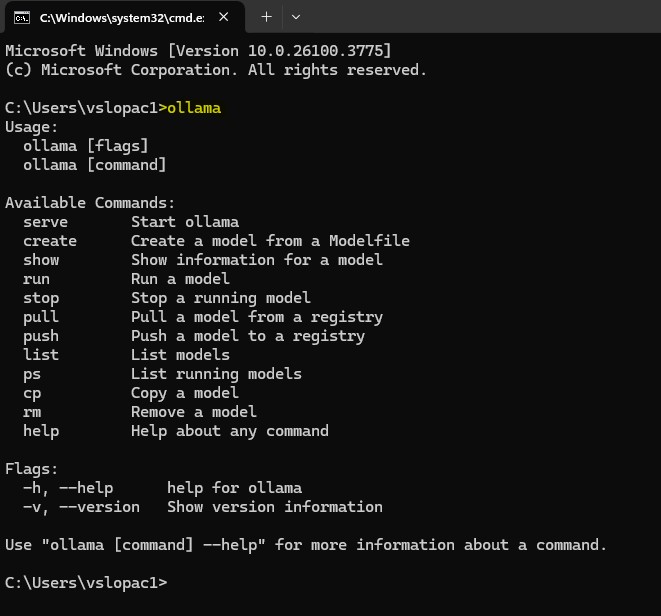
Now let’s open the command prompt and check the ollama and it’s different commands
Just type ollama, you will see the following screen
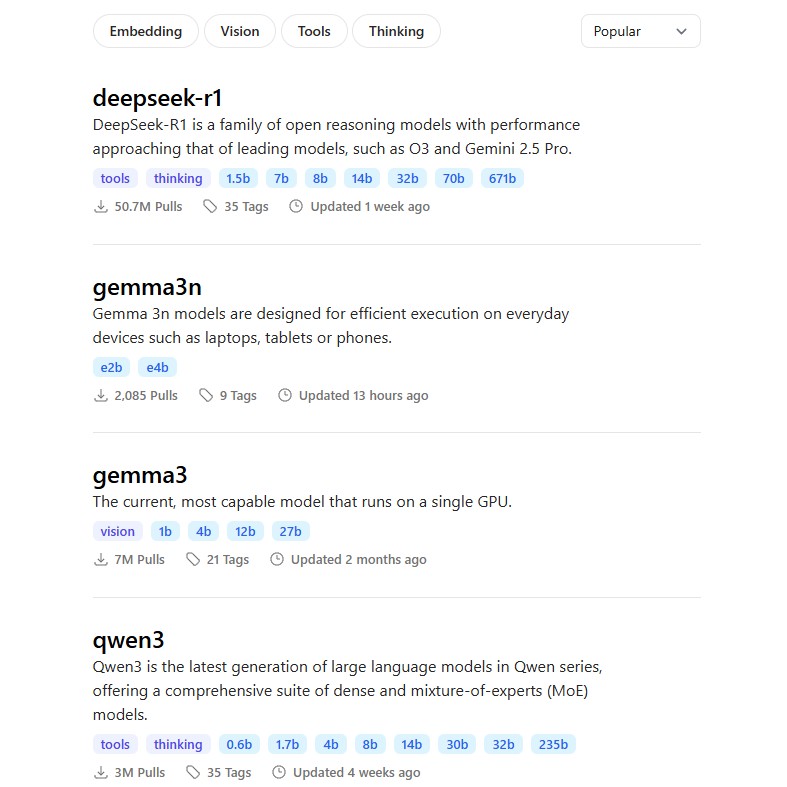
You can see all the models list on the ollama website which you can install locally.
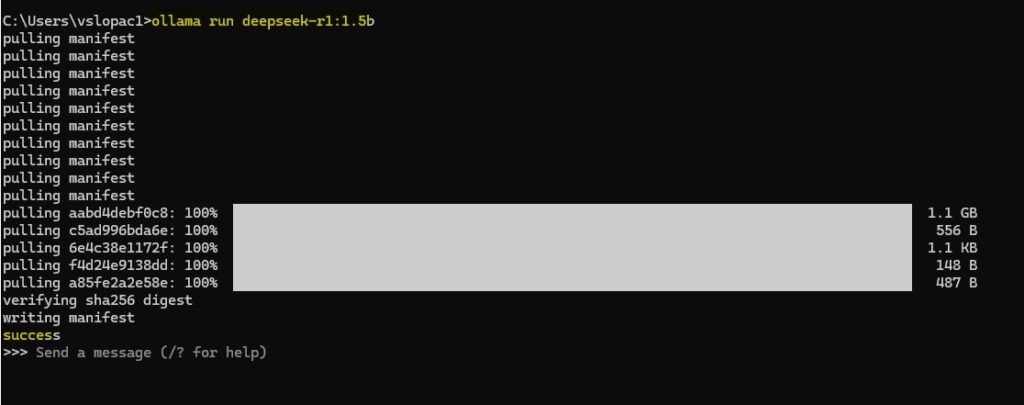
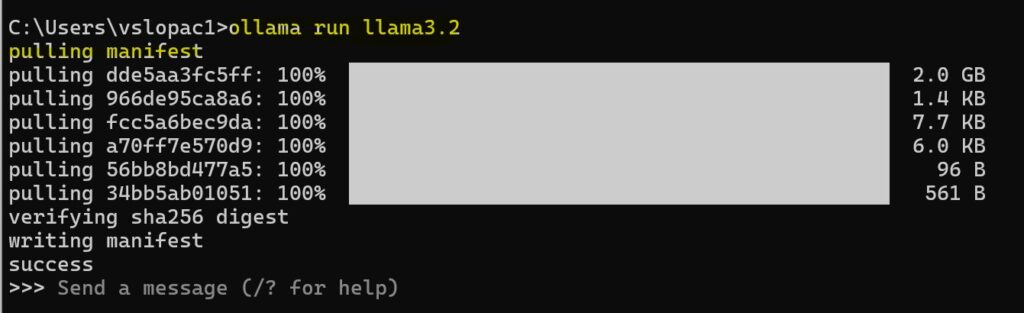
Now let’s install DeepSeek R1 through ollama interface.
For that you need to run the following command
ollama run deepseek-r1:1.5b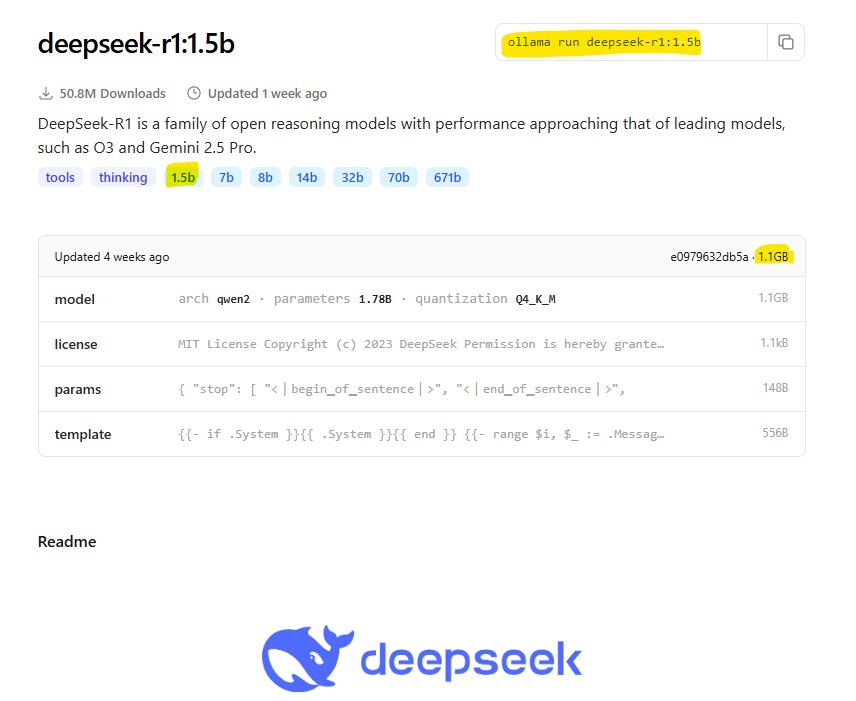
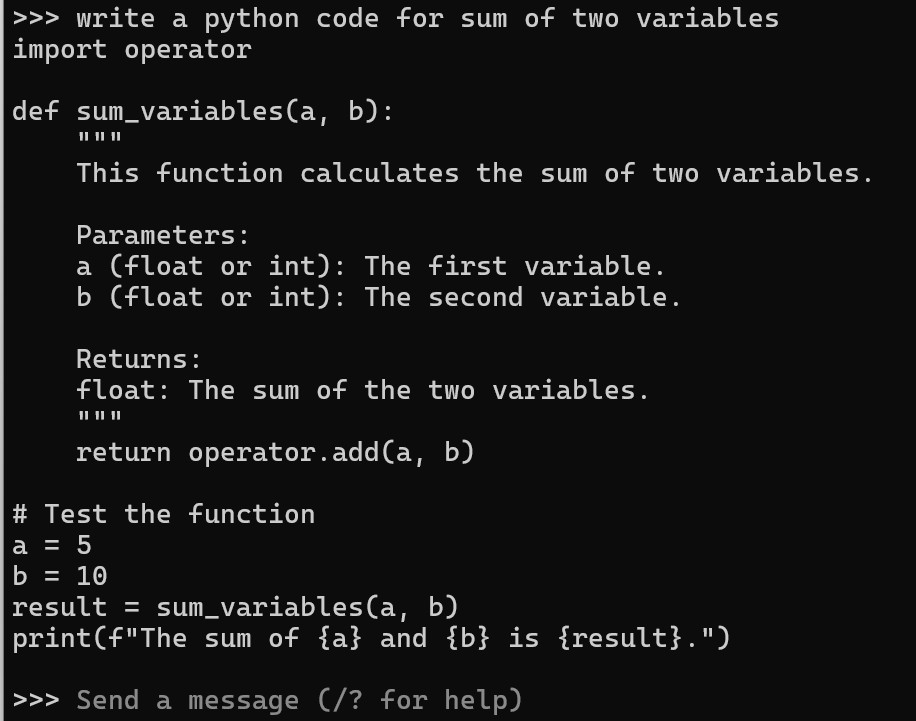

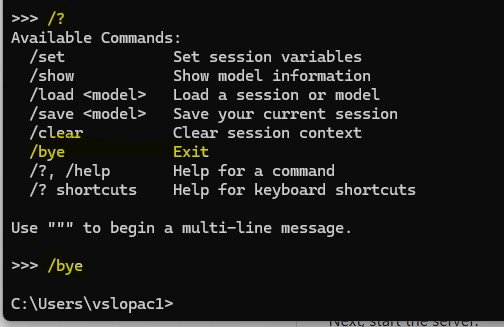
Let’s try some more ollama commands
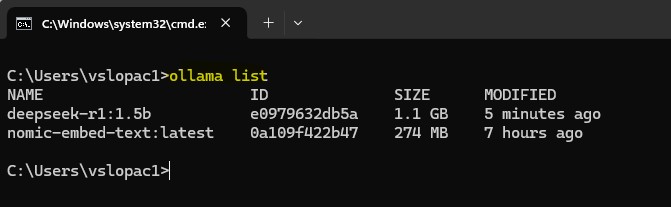
To see the installed LLM models:
ollama list
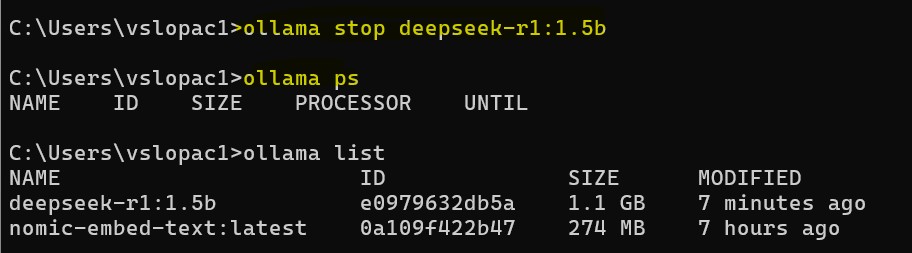
Ollama model stop and check the current ollama model working using
ollama stop deepseek-r1:1.5b
ollama ps
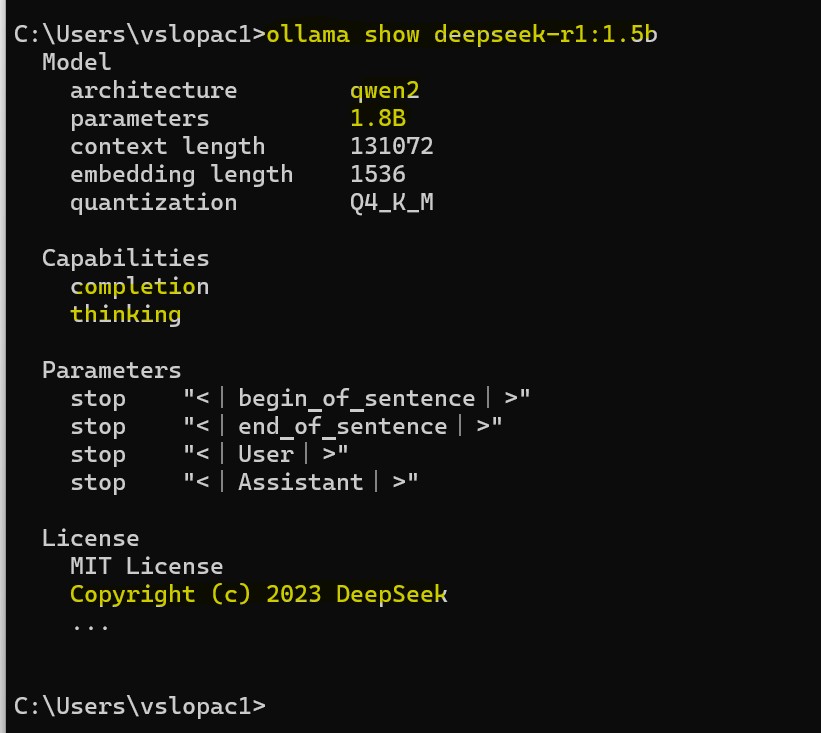
ollama show deepseek-r1:1.5b
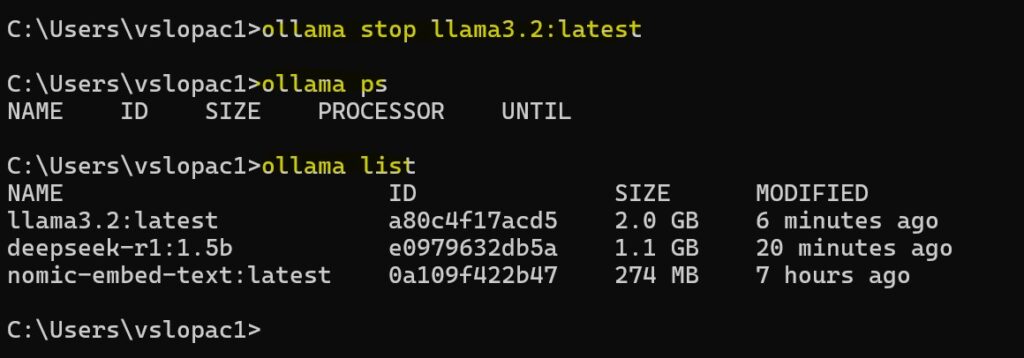
ollama stop llama3.2:latest
ollama ps
ollama list
I hope this guide has helped you understand how to install Ollama on a Windows PC, along with essential commands to download models, start or stop them, and view the list of available models in your Ollama setup. With this knowledge, you’re now ready to explore and experiment with running LLMs locally. Happy building!