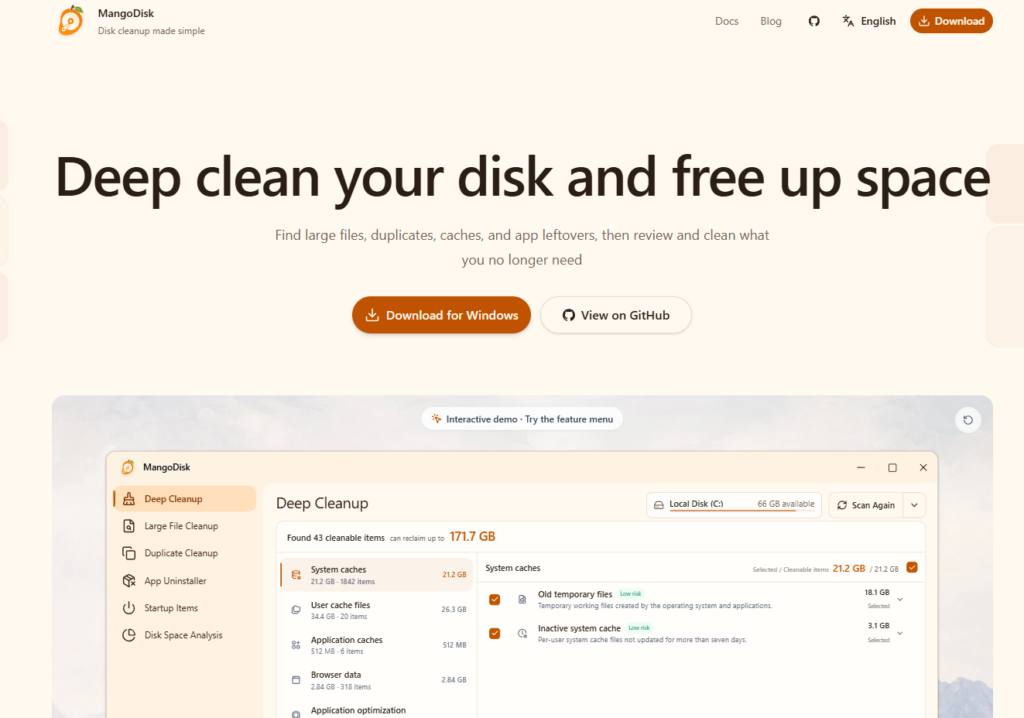
Running low on drive space usually leads to a frustrating routine: guessing which folders are safe to delete or downloading a commercial cleaner that bombards you with upgrade pop-ups and telemetry. Most built-in disk utilities only show broad storage categories without context, while aggressive third-party cleaners risk wiping critical user data behind opaque “one-click clean” buttons. MangoDisk solves this by combining powerful deep cleaning with interactive storage visualization, keeping every operation entirely local, transparent, and user-controlled.
What is MangoDisk?
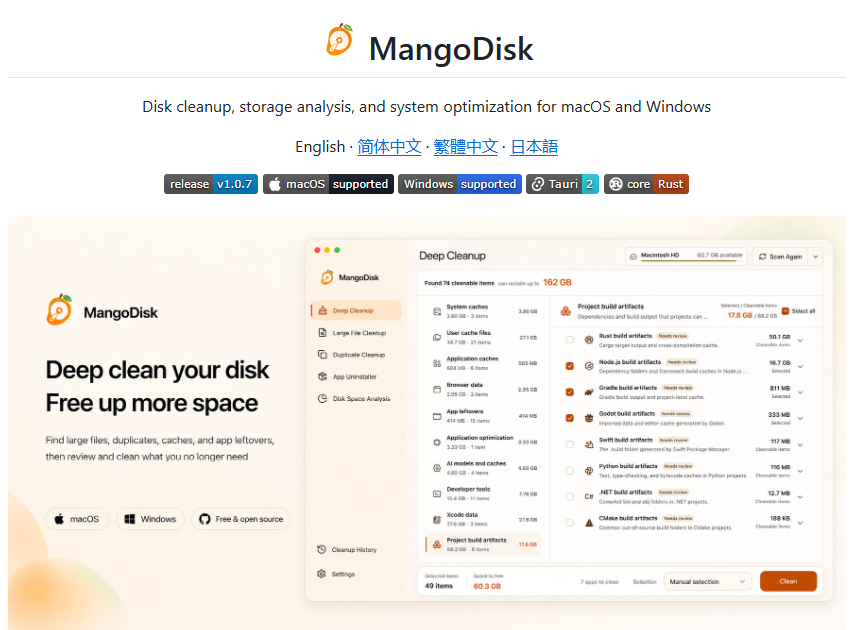
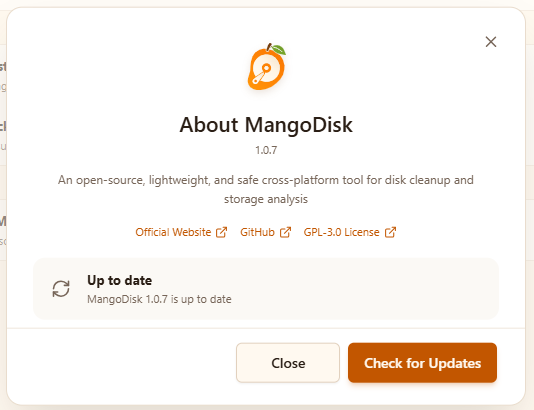
MangoDisk is an open-source, safety-first disk cleanup tool and storage analyzer designed for both macOS and Windows. Instead of running silent automated background deletions, it operates on a strict inspect-before-delete model. MangoDisk scans your drives for reclaimable space, maps out your directory footprint, and gives you complete granular control over what stays and what goes.
Key Features at a Glance
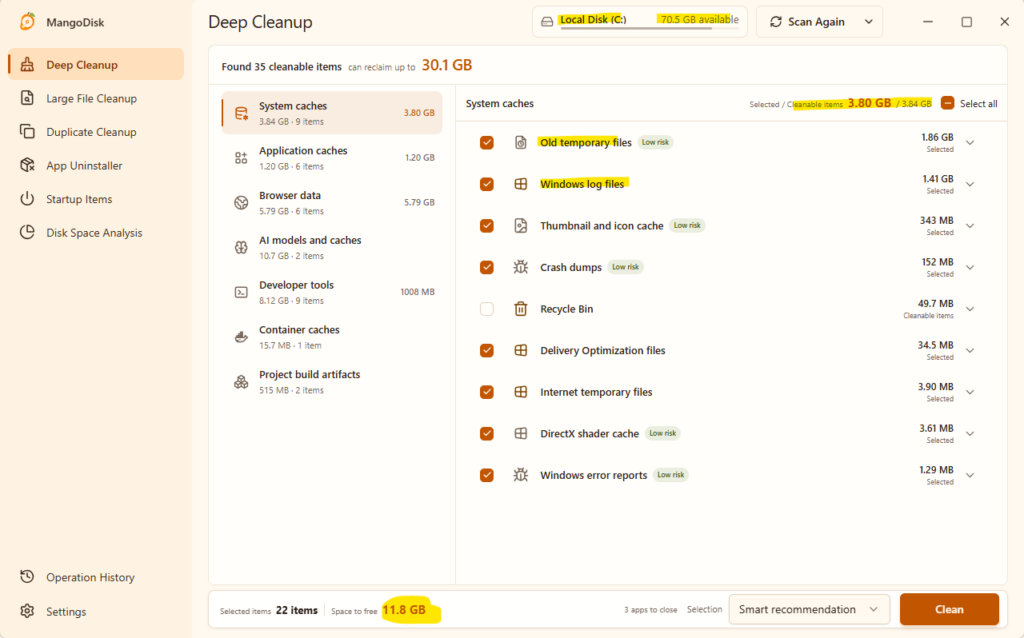
- Deep Cleanup Engine: Surfaces hidden clutter across system caches, user logs, application leftovers, browser data, and developer artifacts (such as orphaned
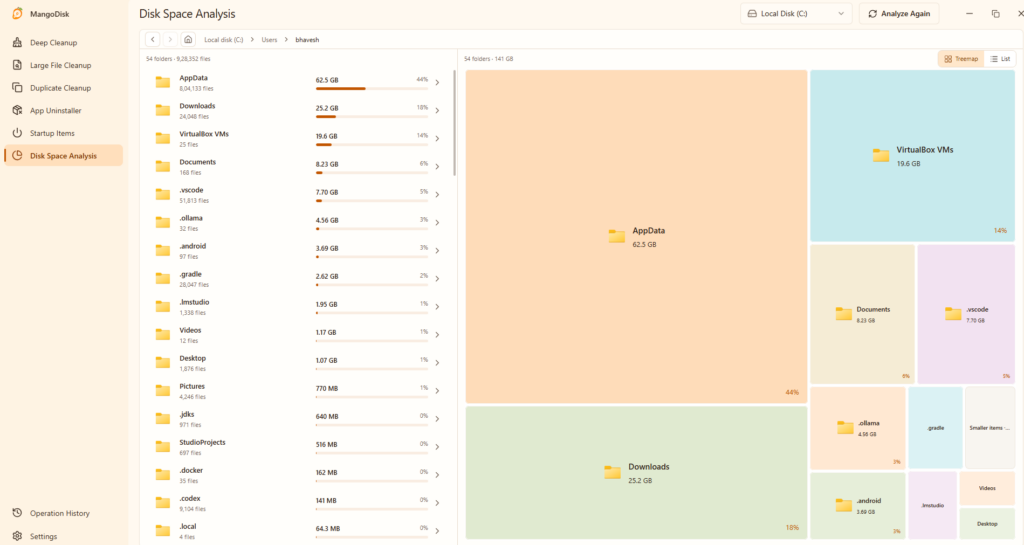
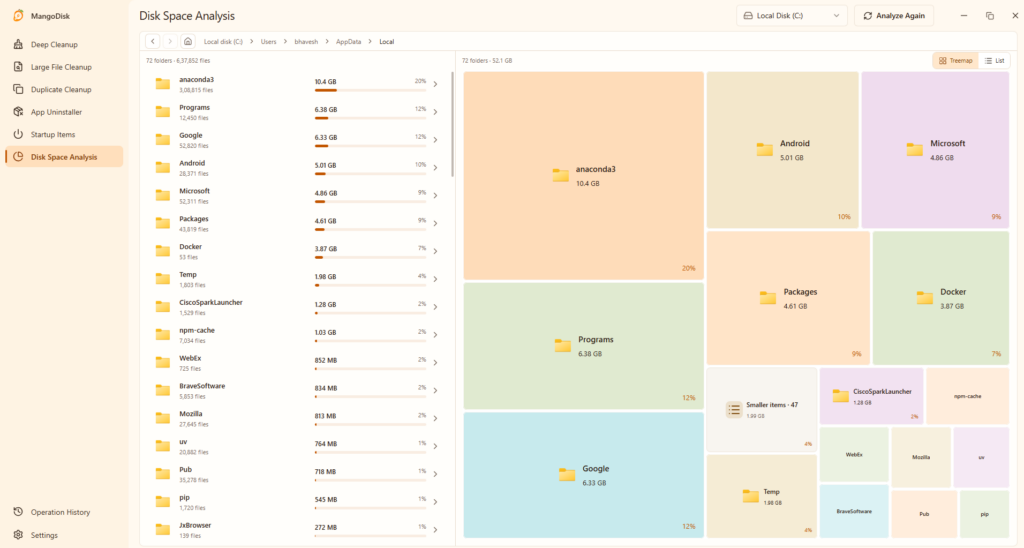
node_modules, Docker layers, and build caches). - Interactive Treemap Space Analysis: Visualizes disk usage with nested treemaps and list views, allowing you to visually spot storage-heavy directories and drill down through folders in seconds.
- Content-Based Duplicate Finder: Identifies duplicate files by analyzing underlying file content rather than just matching file names, preventing false positives and accidental deletions.
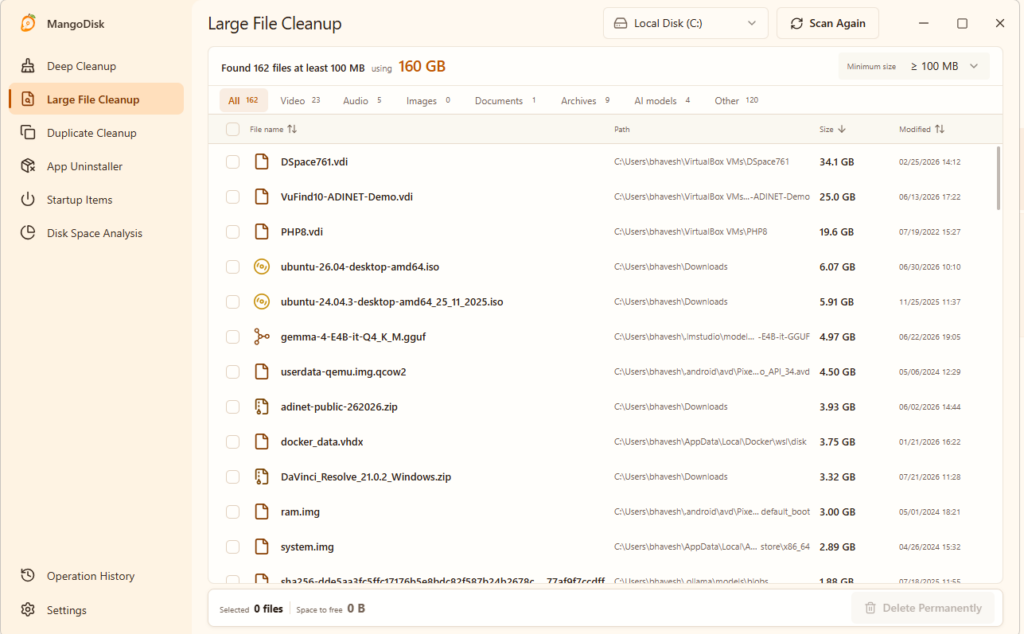
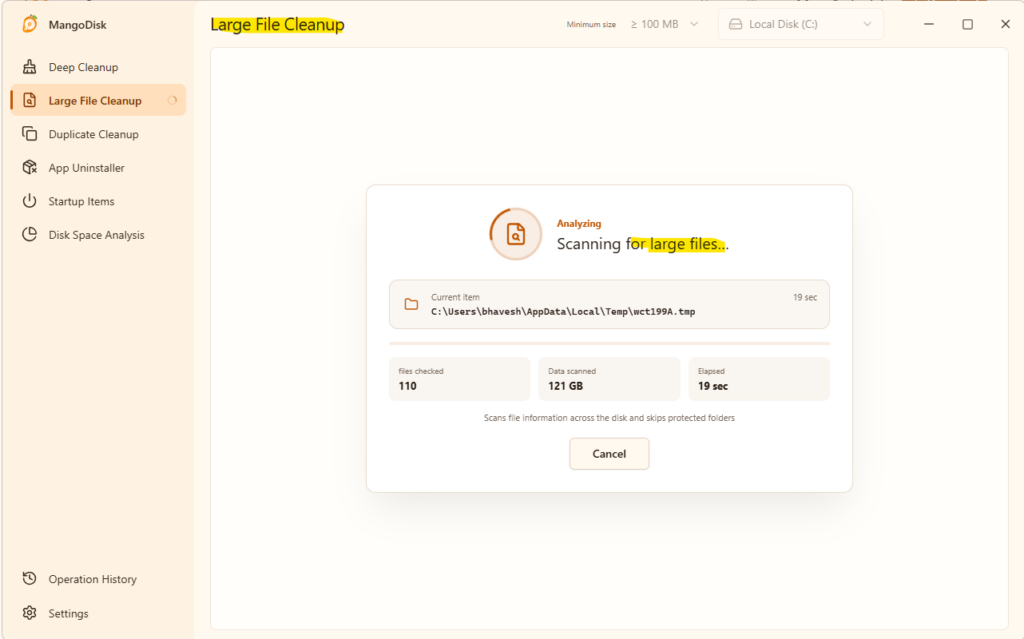
- Smart Large File Cleanup: Scans specific directories or entire drives to filter massive files by size and format, making it easy to isolate stale archives, video files, or forgotten disk images.
- App Uninstaller & Residual Scrubber: Detects installed software and traces their associated caches, preference files, and local configuration folders for a completely clean removal.
- Startup & Background Task Manager: Audits login items, startup programs, and launch agents across macOS and Windows to help streamline boot times and reclaim system memory.
- Zero Telemetry & Local Execution: Runs completely on your local machine with full privacy—no remote file indexing, background tracking, or outbound data sharing.
Step-by-Step Installation and Setup Guide
Setting up MangoDisk takes only a few minutes. Follow these steps to install and start using it safely on your system.
Step 1: Download the Application
- Open your browser and navigate to the official site at mangodisk.app or view the source directly on the MangoDisk GitHub Repository.
- Go to the Releases page to locate the latest stable build.
- Choose the appropriate installer package:
- Windows: Download the
.exeinstaller or standalone.msipackage. - macOS: Download the universal
.dmginstaller (compatible with Apple Silicon and Intel Macs).
Step 2: Install MangoDisk on Your Machine
For Windows:
- Locate the downloaded
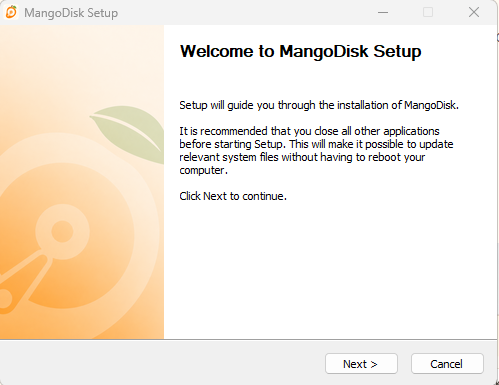
.exesetup file in yourDownloadsfolder and double-click to run it. - If Windows SmartScreen or a User Account Control (UAC) prompt appears, click More Info followed by Run Anyway (or Yes) to allow setup.
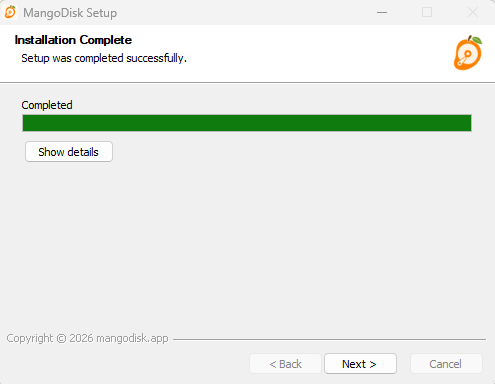
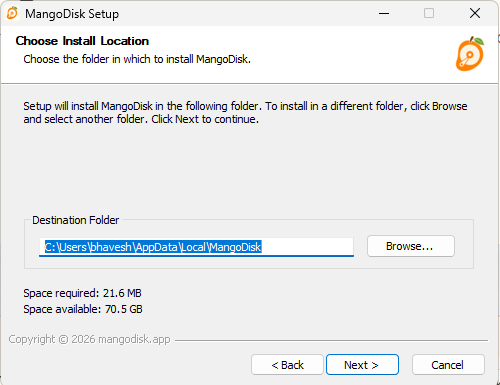
- Follow the on-screen installation wizard, select your preferred destination folder, and click Install.
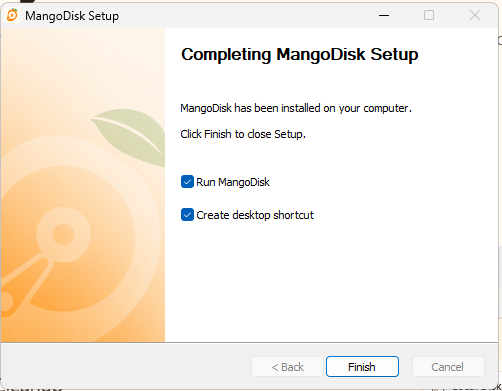
- Once the process completes, check Launch MangoDisk and click Finish.
For macOS:
- Double-click the downloaded
.dmgfile to open the disk image. - Drag the MangoDisk app icon directly into your Applications folder.
- Launch the app from Spotlight or Launchpad. When prompted, grant necessary disk access permissions in System Settings > Privacy & Security > Full Disk Access so MangoDisk can inspect system and cache directories accurately.
Step 3: How to Use MangoDisk to Reclaim Storage
To get the most out of MangoDisk without risking essential personal files, follow this straightforward workflow:
1. Run a Deep Cache Scan
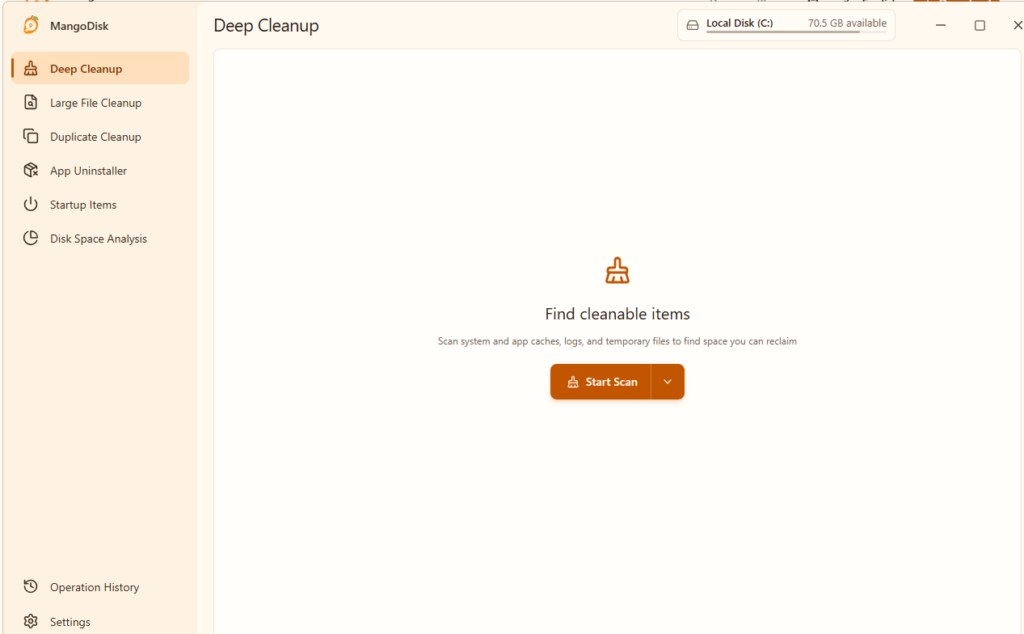
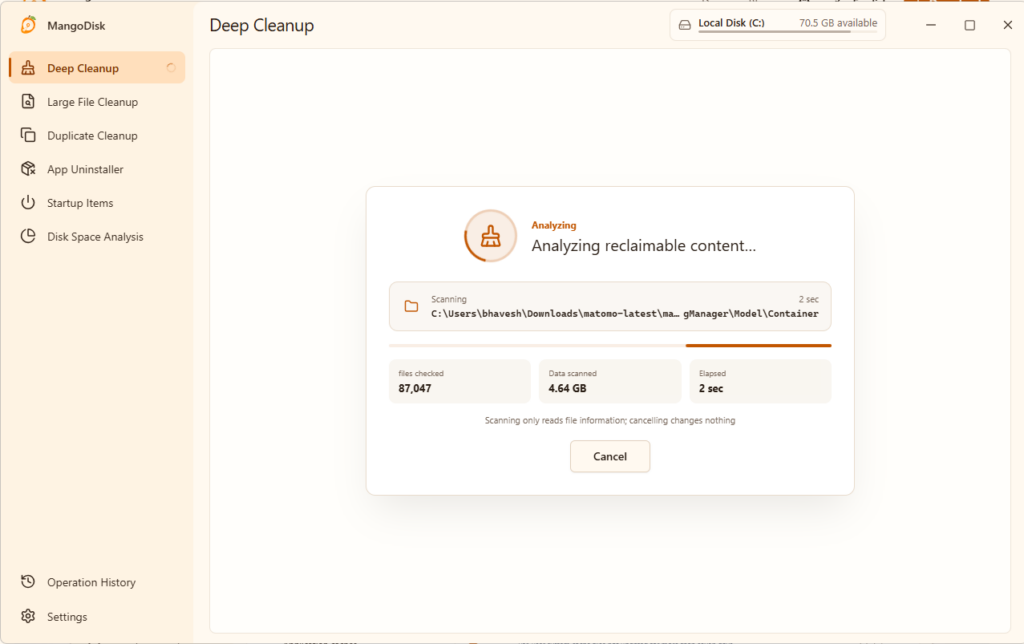
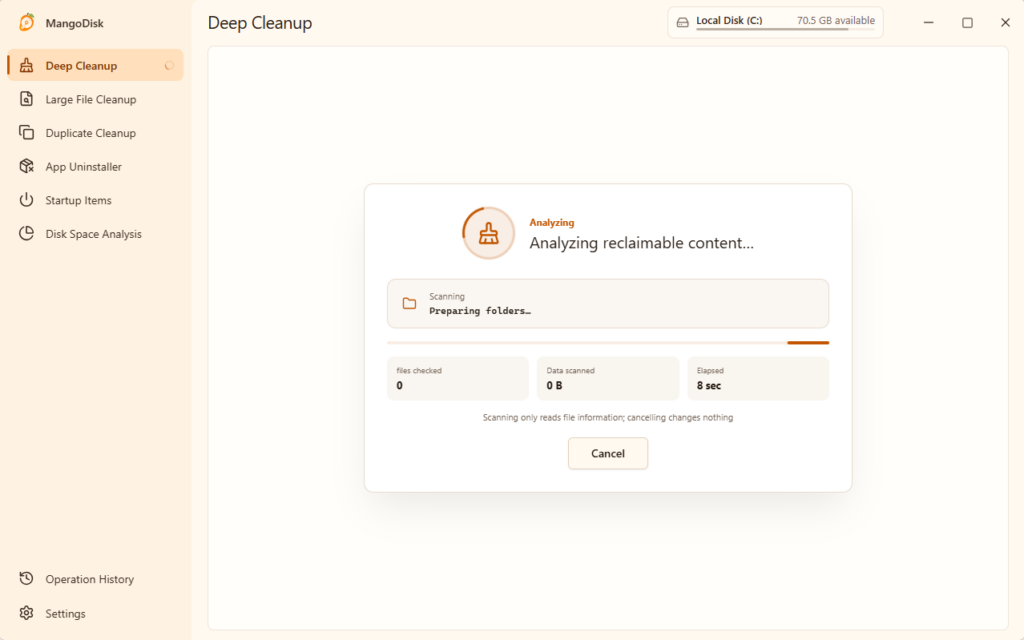
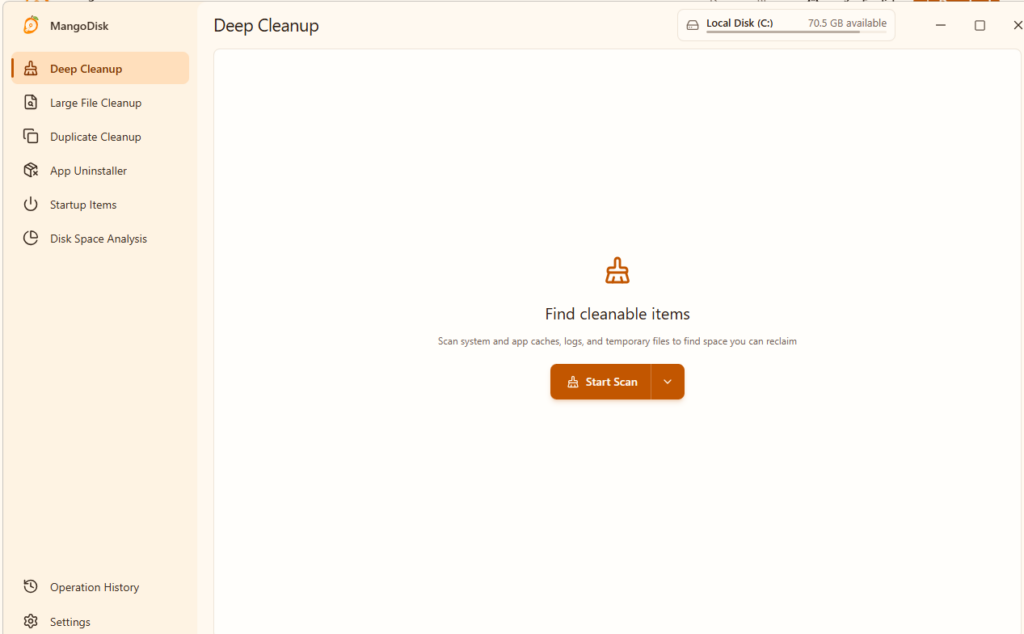
- Navigate to the Deep Cleanup tab from the sidebar.
- Click Scan to search through system caches, browser storage, and development build artifacts.
- Click into any category to view individual file paths and sizes. Select only the categories you want to purge, then click Clean.
2. Analyze Bloated Directories with the Treemap
- Open the Disk Space Analysis module and select the drive or folder you want to inspect.
- Explore the visual blocks on the treemap. The larger the block, the more disk space that folder occupies. Click any block to drill down into subfolders and isolate forgotten downloads or stale media folders.
3. Eliminate Exact Duplicates
- Head to Duplicate File Cleanup and select the folders you want to evaluate.
- MangoDisk scans and groups identical files based on byte-level data. Use the auto-select tool to keep the original copy and stage duplicate items for safe removal.
4. Remove Unused Applications Cleanly
- Select the App Uninstaller tab to review all installed applications.
- Select software you no longer need. MangoDisk will automatically highlight the base application alongside all associated configuration files, saved caches, and registry/preference entries, ensuring a complete uninstall.
Why MangoDisk is Worth to use
Keeping your operating system fast and responsive should not require sacrificing user privacy or trusting opaque, closed-source utilities. MangoDisk delivers a modern, open-source alternative that puts complete diagnostic transparency and granular safety back in your hands. Whether you need to clear out gigabytes of developer caches or simply want to track down what is consuming your drive space, MangoDisk provides the clarity you need to clean with confidence.